
Data Integration using Azure Data Factory

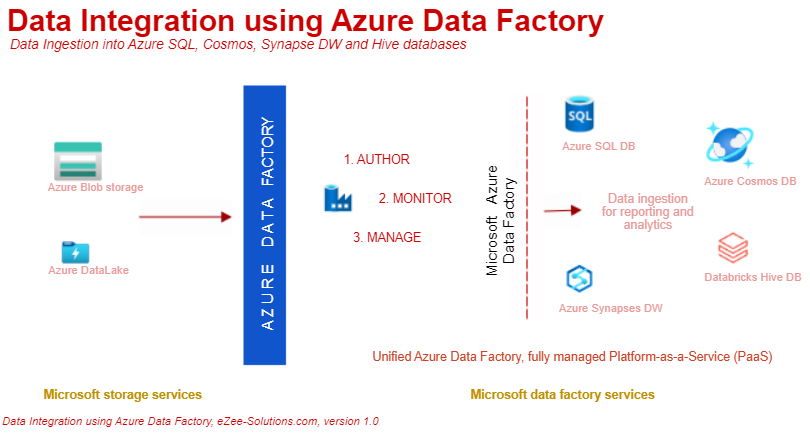
In today's ever-increasing world of digital transformation, analytics has become an important topic. This puts most of the data integration tools at edge, demanding high performance w.r.t data volume, variance and velocity.
Back in 2005, Microsoft introduced SQL Server Integration Services (SSIS), a component of the MS-SQL Server database, performs a broad range of data warehousing, data integration and data migration tasks. Using SSIS controls, one could build data flow tasks and perform Extract Transform Load (ETL) activities. Though they are limited to on-premise data handling with available SSIS connectors, but it works well, as many of the organization are leveraging its benefits of it.
Given the dynamics and intensity of technological changes, the current era has brought us to a new podium, where one needs to connect to multiple data sources, perform data movement and orchestration rapidly, handling huge data load (volumes) both structured and unstructured formats, to ensure speedy arrival to data insight, without missing the cut w.r.t Time to Market.
This is exactly, what has been achieved in the cloud version of Integration Services, the Azure Data Factory (ADF), a next generation Unified Data Integration Tool, managed by Microsoft. It handles both ETL or ELT from multiple data sources, saving enormous research time or manual code w.r.t implementing new data connectors.
In this article, we perform data movement using ADF connectors. We use Azure Blob storage as our input data source, and ingest data into various output data sources such as SQL, HIVE, Synapses and Cosmos database.
Setup
Once your environment is set up, by signing up for "Azure Free Trial Subscription", one could create "Data Factory" workspace from the available Azure services.
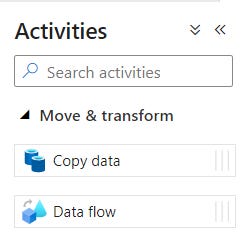
Using "Move & Transform" activity (as shown below), one could either move data using Copy-data or orchestrate them using Data-flow activity. Using these activities, one could load data from 90+ data sources (connectors). One could also lift and execute on-premises SSIS packages into ADF. The scope of this article is to showcase, code-free ease of moving data across databases, using Azure's unified Data Factory platform.
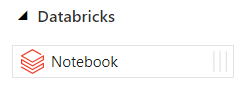
One could also use Notebooks, directly into ADF as data pipeline. In my previous article about "Azure Databricks", we have seen how Notebooks are used to program and ingest data into HIVE databases.
Let's get started … there are three options in ADF portal, which helps configure and perform data movement.

AUTHOR
Similar to the old traditional way of creating SSIS packages with control and data flows, one gets factory resources to build data workflows. Generally, one would spend more time here, authoring pipelines and data flows. We create pipelines to execute one or more activities.
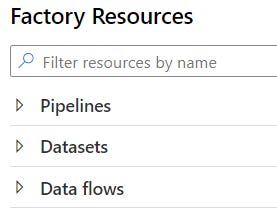
1. Pipelines:
Pipelines are set of activities, which defines a workflow. As shown below, we would be using "Move & transform" activities.
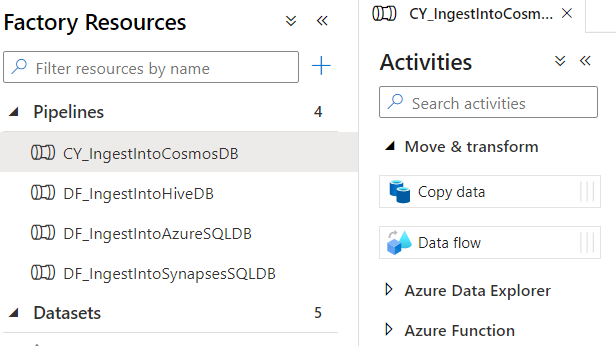
One may use pre-defined templates, or just create custom templates from scratch to build new pipelines. By enabling "data flow debug", one could test connections and preview data, during the pipeline creation.
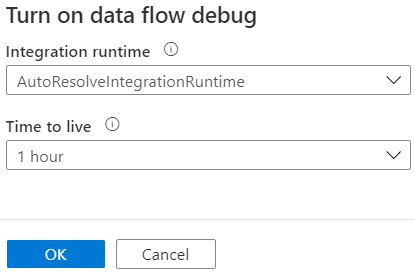
Below, we will create 4 data pipelines, using ADF.

To ingest data into Azure SQL Database, we choose "Data flow" activity and define its source and sink (destination) settings. One may also choose Data wrangling option, to cleanse and unifying complex datasets.
To pull data from a Azure Blob storage, we need to authenticate source connection using SAS URL and token, which are accessible from the storage section, under "Shared Access Signature". A shared access signature (SAS) is a uniform resource identifier (URI)that grants restricted access rights to Azure Storage resources.

Once the source and sink column mappings are defined, these connections becomes Linked Services, which would ingest data into Azure SQL database.

By clicking on the [+] symbol, one would invoke available transformation options, as shown below. Finally, we build our first code-free data pipeline, as shown below.

To ingest data into Cosmos database, we choose "Copy data" option, instead of data flow activity and define its source and sink settings.
In previous pipeline, our source was already setup, we just need to choose a JSON file, as input file. Cosmos database stores JSON documents in containers, and using SQL API one could use limited SQL statements to query JSON data, just like in relational database.
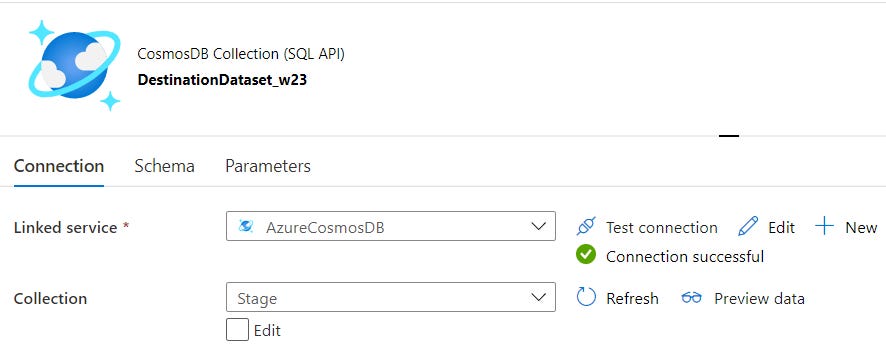
With these minimum settings, we build our second code-free data pipeline as shown below. Cosmos DB is widely used in mobile, social, web and IoT applications. IoT applications creates huge amount of data from sensors, distributed across many locations. These burst of data could be ingested into Cosmos DB, as single logical store, which could be enriched for reporting and analytics using SQL queries.

To ingest data into Hive database, we choose Databricks "Notebook" activity in Data Factory.
This comes extremely handy, once you have build-up those ingestion and transformation logics as code, using extensive analytics libraries in Scala or Python. We would authenticate and create a Databricks Notebook linked service, and execute them directly in ADF.
To showcase a simple example, the following code from Databricks notebook, when executed in ADF, ingests data into Hive database. One could automate the execution, along with other data flow pipelines based on application dependencies.

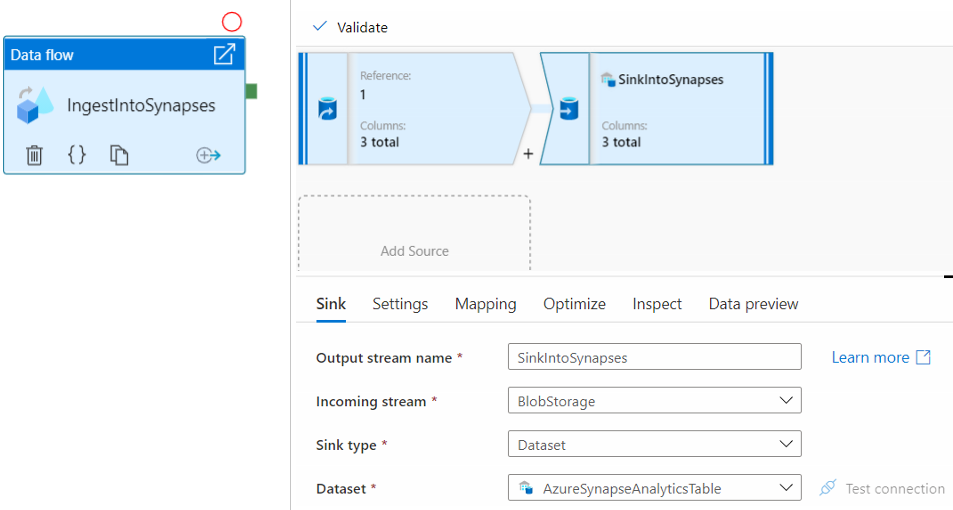
Finally, by creating a Linked Service to Synapses SQL pool, we could ingest data into Synapses SQL DW.
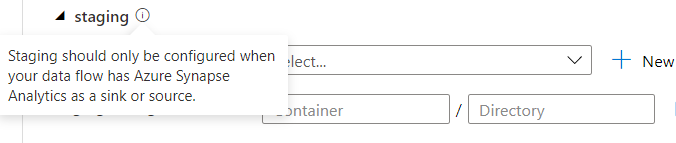
While loading data into Synapse DW, we need to perform an extra step, by choose a staging location for PolyBase batch load. This enables batch loading in bulk instead of loading the data row-by-row. It also reduces the load time into Synapse DW.
2. Dataset:
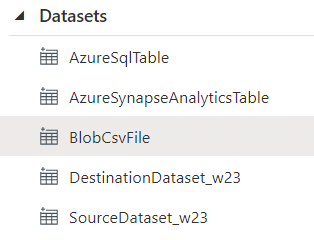
Once the pipelines are defined by creating source and sink Linked Services, each of these connections forms a Dataset. These datasets are like named views that represent a non-persist database, a table or a single file.
3. Dataflow:
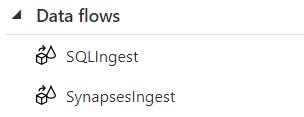
Similarly, the data flows defined inside the pipelines are shown here, which could be shared within other pipelines.
Using "Trigger now" option, one could run the pipeline manually in debug mode. After successful validation, the entire flow could be scheduled using triggers.
MONITOR
ADF comes with following monitoring options.
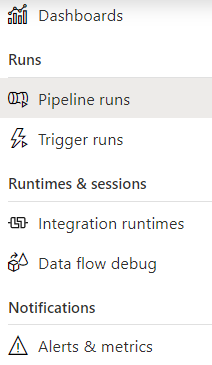
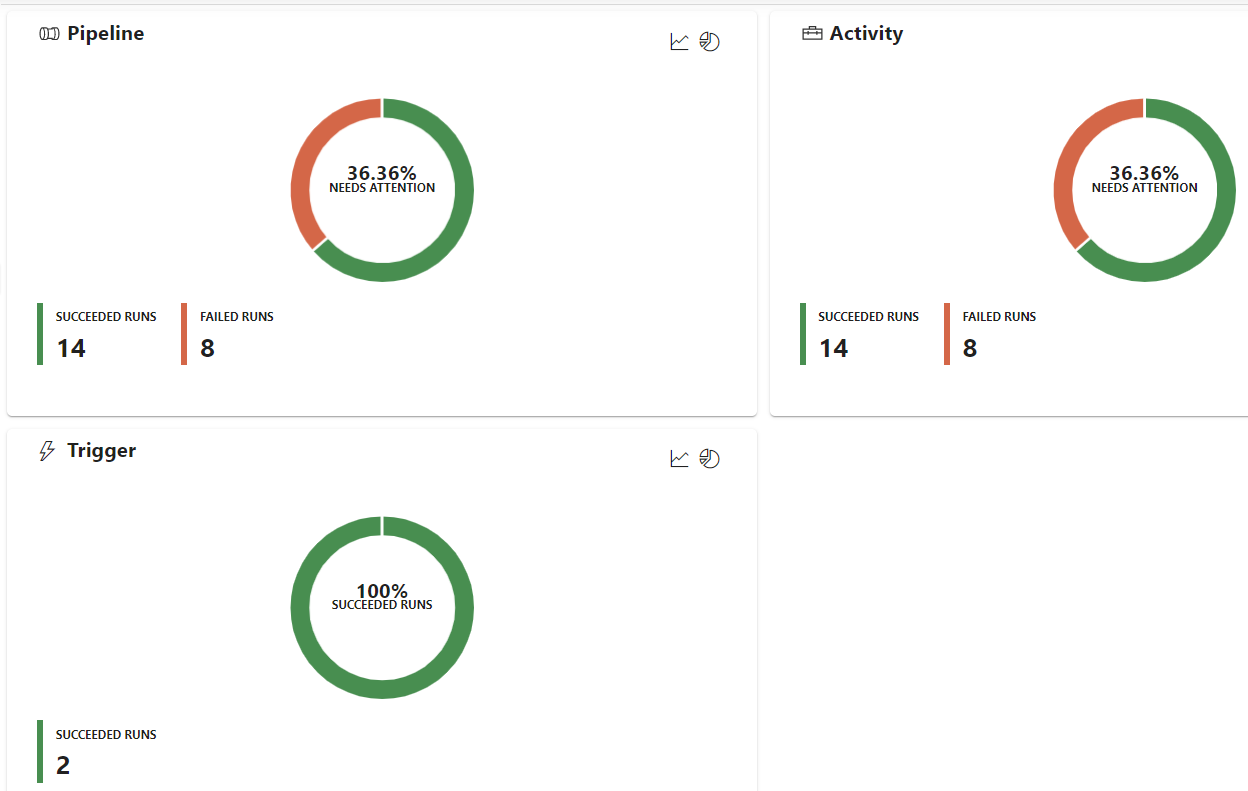
Administrator and developers stay on top of the data movement activities, using unified monitoring dashboard. It gives us one single view of all available pipelines, activities within those pipelines and trigger runs.
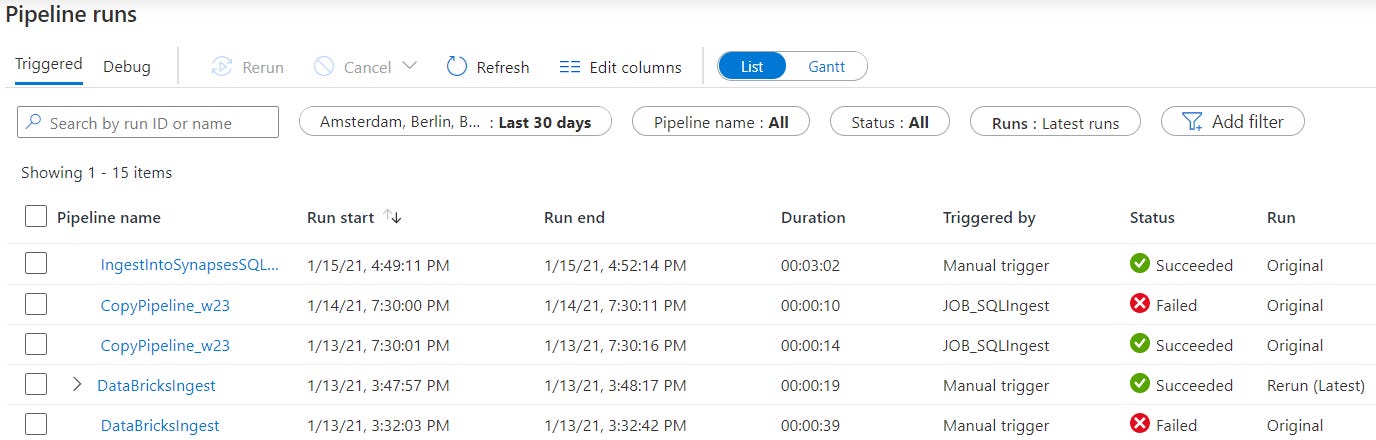
Using "Pipeline runs" option, one could find the specifics w.r.t duration and statuses.
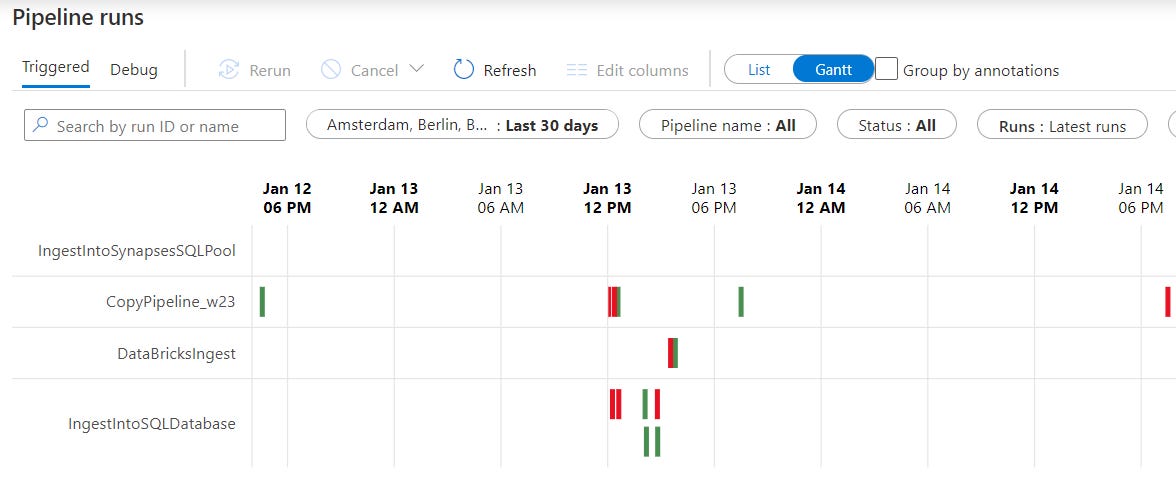
One could change the display as Gantt chart, to get a good sense of pipeline runs w.r.t time-line and duration, as shown below. Also, when working in multiple time zones, one could easily switch the runs into local time zone.
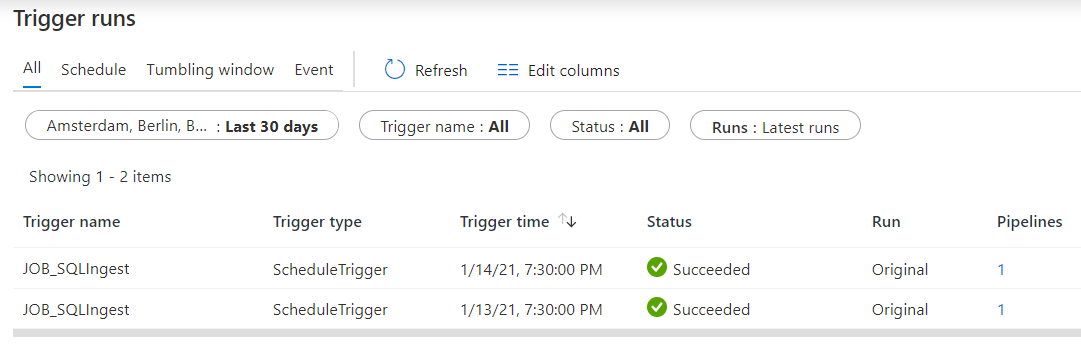
The "Trigger runs" are more like the SQL Server job history, as shown below.
The rest options in this page are "Integration Runtimes" and "Notifications".
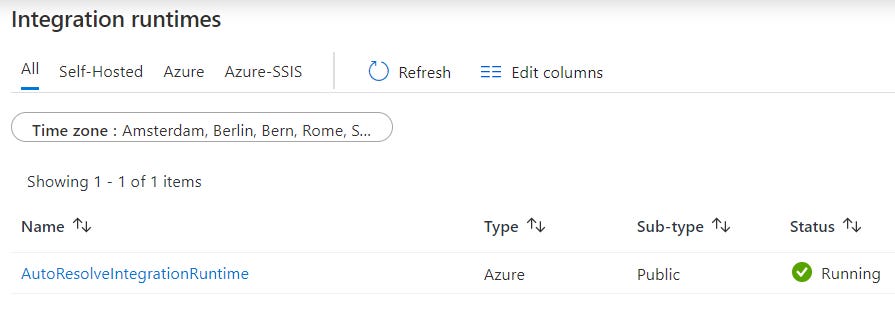
The Integration Runtime (IR) is the compute infrastructure, which provides data integration capabilities such as Data flow, Data movement, Activity dispatch and SSIS package execution. Using this option, one could see all integration runtimes, and monitor its node-specific properties and statuses.
ADF uses default runtime called "AutoResolveIntegrationRuntime", and one cannot stop this service. The Self-hosted and Azure-SSIS are user managed and hence, could be stopped at any time, to save cost.
And finally using "Notifications" option, one could create alert rules based on metric values and logs. Based on the severity, one could trigger email alerts.
More information about the alert setup is found under this link: https://docs.microsoft.com/en-us/azure/azure-monitor/platform/alerts-overview
Manage
Using manage options, one could setup the best possible configuration options, to fulfil project requirements.
One could customize the Integration runtimes based on performance requirement. ADF offers three types of Integration Runtimes as listed below, and one may choose the best, that serves the integration needs.
Azure (default)
Self-hosted
Azure SSIS
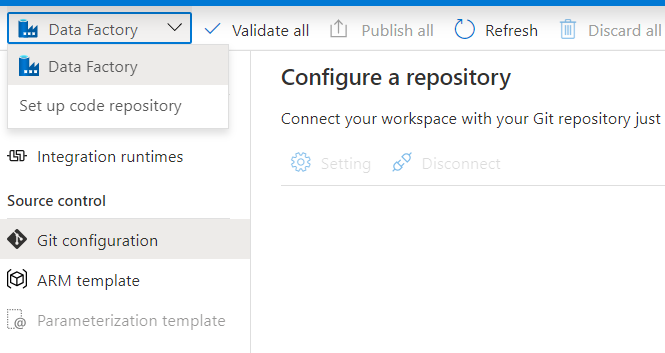
When working in a group or team, one could enable Git and publish ADF changes directly into a Git repository.
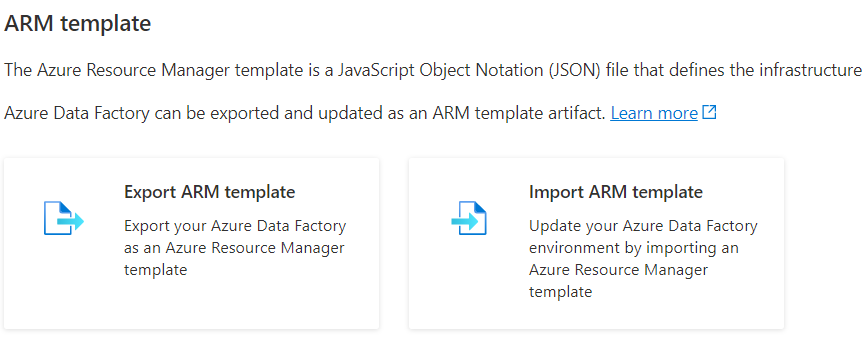
Using Azure Resource Manager (ARM) templates, which are JavaScript Object Notation (JSON) files, one could define the infrastructure, and configure the project. These templates gives us the ability to rollout Azure Infrastructure as code, which makes the project portable and modular. One could choose a "GitHub Quick Start" template, or build own template using the editor.
To automate the pipeline, one could create a trigger based on a wall-clock schedule or based on time interval such as, on a specific day of the month or hour of the day (Tumbling window) or even run in response of an event, such as a new file arrival in Azure Blob storage.

Tip:
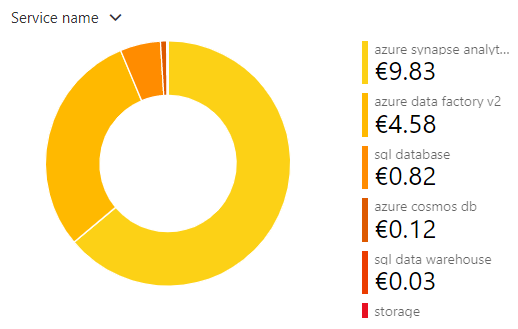
One should pay attention to the cost incurred by these services.  When scheduling triggers, the pricing model is based on the number of  activity runs, under each trigger. Also, the default Azure IR compute  environment incur cost based on the execution of activities or when  enabling the debug mode.

More information about the pricing is found under this link:
https://azure.microsoft.com/en-us/pricing/details/data-factory/
Using Azure Cost analysis, one could understand the origin and spending pattern of cost. Based on these insights, one could enforce control and optimize services, in relation to the available budget.
Conclusion
To stay ahead in the race, one must BOX (Formula1 term), to evaluate current tools w.r.t their cost and efficiency and perhaps, replace or embrace hybrid solutions, to achieve speedy innovation and time to market.
Azure Data factory is a fully managed Data Integration platform, easy to set up and get started, integrates with ease to many other Azure services and storage resources. It’s a low-code tool which helps develop rapid ETL and ELT pipelines, performing data movement and orchestration across 90+ "maintenance free" data connectors, using a coherent intuitive GUI environment. With the consumption based model, one is charged only based on the actual usage, saving significant cost.
After building few pipelines, my focus was more on data, rather than worrying too much about the infra-structure and server setup, and that is exactly the key essence of ADF Cloud service. Finally, leaving you with this F1 quote …
"If everything is under control, you are just not driving fast enough" –Sir Stirling Moss